
Field guide
How to Animate an Image with AI: A Step-by-Step Guide
Animate a still image with AI: choose a source, write a motion prompt, check Credits, and review your clip. Includes a real archived example.
To animate an image with AI, choose a source frame, describe the motion, select the available video settings, and generate a clip. Then watch the whole result before downloading it. This tutorial follows the Uncensored AI Video Image-to-Video tool, including when sign-in and upload happen.
AI image animation adds new motion: a glance, drifting steam, or a camera move through a scene. For an exact slide or zoom of an unchanged photograph, use a video editor.
From a new reference image to a video
Starting without a picture? Use Text to Image to compose an original character, product concept, or scene. If you already have a picture but want to change its lighting or setting, start with Image to Image. Review the completed still, then choose Animate this image to carry it into Image to Video. Write a new motion prompt and check the video settings; image creation and animation are separate generations.
1. Choose the image and the moment
Start with a still image you have permission to animate. Decide what the finished shot needs to show: a subject glancing toward the window, steam rising from a cup, or a camera approaching a stationary object. Choose one moment you can judge when the video is ready.
Inspect the image at the size you expect viewers to see it. If an important face or object is indistinct, fix the still before spending Credits on motion. The image preparation checklist covers cropping and detail checks.
2. Add your source image
Open Image to Video. Click the source-image area or drag a file onto it. The current form accepts JPG, PNG, and WebP; read the size limit shown beside the upload area for the selected option. Check that the preview contains the image you intended to use.
You can select a file and prepare the form before signing in. Selecting a local file is different from uploading it to the service: the upload begins when you submit an eligible generation after sign-in. If the sign-in journey reloads the page, check the form again and reselect your file if necessary.
3. Write a motion prompt
For image-to-video, the image supplies the appearance. Use the prompt to direct what happens over time. Runway's image-to-video guide, currently written for Gen-4.5, recommends focusing on movement; Google's Veo guidance makes the same distinction. Runway guide, Google guidance
For a still image of a cup on a windowsill, an illustrative starting prompt is:
Thin steam rises from the cup and curls toward the window. The camera stays in the same position throughout the shot.
Use this draft to test three things: does the steam move, does the cup hold its shape, and does the framing stay put?
Need an orbit, pan, or push-in? Choose the movement deliberately from the camera prompt guide instead of adding several camera instructions to this first attempt.
4. Check settings and Credits
Choose from the model and settings currently offered in the form. Review the duration, frame shape, output resolution, and displayed Credits together. Changing a selection may change the other available choices and the cost.
Budget for an attempt, then decide whether the result justifies another. A completed clip that misses your creative direction is different from a technical failure; see how Credits and failed tasks work before planning retries. The amount beside Generate is the one to check for your selected configuration.
5. Sign in and generate
Click Generate. If you are signed out, complete sign-in first, then review the image, prompt, settings, and Credits before submitting. The service checks the selected inputs and available balance, uploads the source, and creates the generation task.
Follow the status shown in the result panel. A file validation error calls for a corrected input; a task still processing calls for waiting. If status checking stops, use the available status or recovery action before submitting another generation. A missing preview alone does not tell you whether the original task failed.
6. Review and download the clip
Play the full result at normal speed, then pause where something looks wrong. Compare the first frame with the source, watch the peak of the action, and inspect the ending. For a portrait, check the face during movement; for the cup example, check the rim and handle as the steam passes them.
Use Download result when the completed output is available. Open the downloaded file and check the portion you plan to publish.
A real example: Paper Garden Awakens
A burgundy paper hummingbird leaves its perch, hovers, and settles back among ivory flowers. The source image supplies the paper texture and arrangement; the prompt directs the light, wings, and camera.
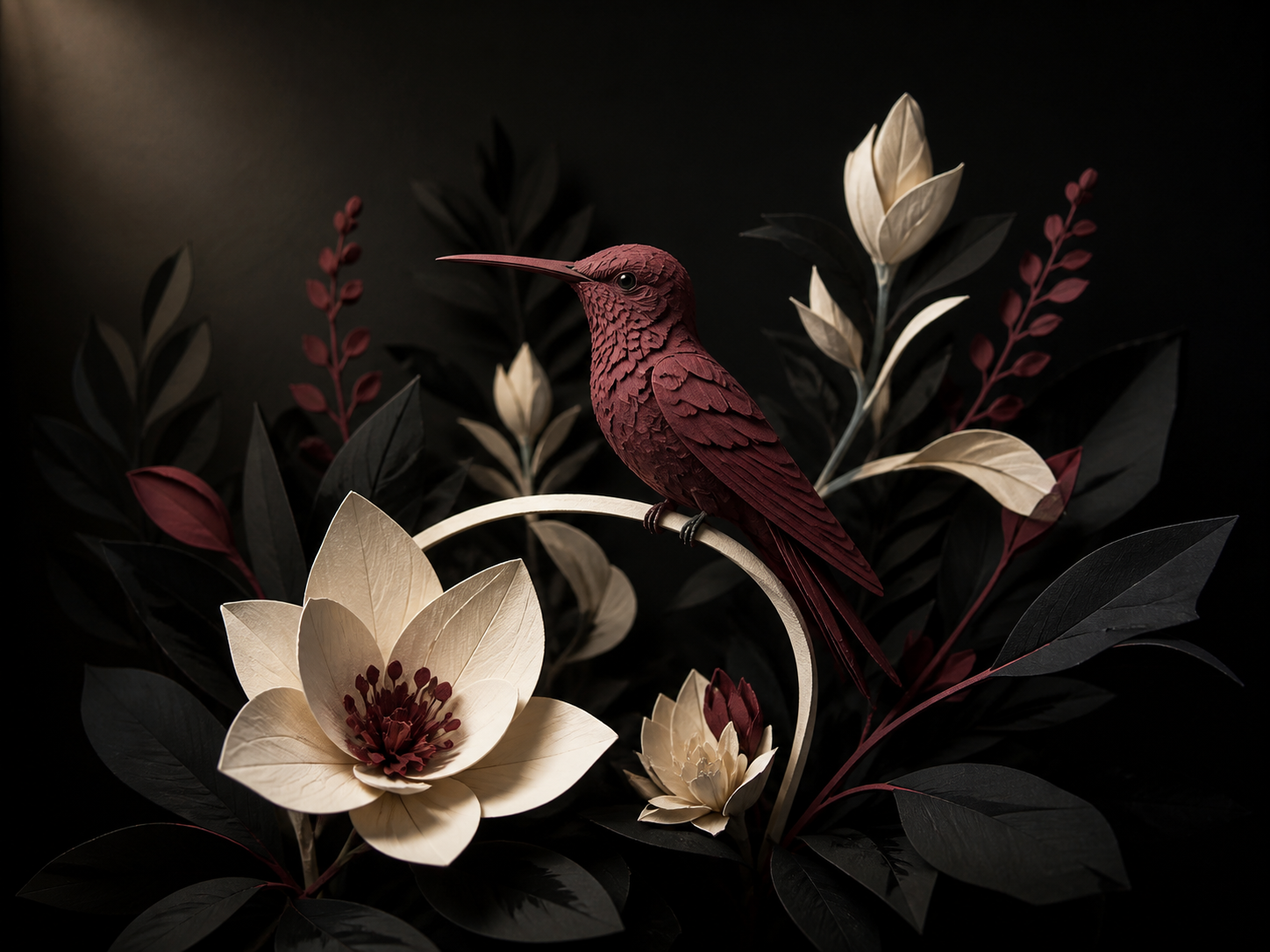
At 0–1 seconds the bird is perched; at 2–4 seconds its wings open and it hovers; at 5.8 seconds it is perched again. Watch the flowers too: their shapes and lighting change. A recognizable subject can coexist with smaller changes elsewhere in the frame.
For your own first attempt, choose the moment that matters most. If the hover is the goal, judge the lift, wing motion, and landing before adding another camera move.
Example details and original prompt
Generated August 27, 2026 through WaveSpeed's Seedance 2.5 image-to-video API, from an OpenAI ImageGen still. The request used 6 seconds, 1080p, no generated audio, and the same image in both first-image and last-image inputs. The display video is a resized copy.
The full request record includes the prompt's requested camera arc and loop. This single archived result supports the observations above; it does not establish a perfect loop, a causal benefit from the last image, or a current website generation and Credits transaction. Historical API inputs may differ from the controls in today's form. See how we document examples.
Decide what to change next
Write down the visible problem before editing the prompt. “The camera moved right” suggests a camera-direction experiment. “The face changed during the turn” belongs to character consistency. Flashing textures or bending shapes belong to the AI video artifact guide.
Keep the source and settings recorded, change the instruction that addresses the problem, and compare the next result. When the shot is clear enough to evaluate, animate your image.
Use the method