Uncensored AI Video

Free Uncensored AI Text-to-Image Generator

Turn a written idea into an image. Choose your settings and review the Credits before generating.

Text-to-image configuration controls

Start with a visual direction

Text-to-image prompt examples

These site-owned images are visual references made with OpenAI ImageGen, not results from this site's live generator. Load a starting prompt and make it your own; the selected model may produce a different image.

Swipe to explore four starting points.

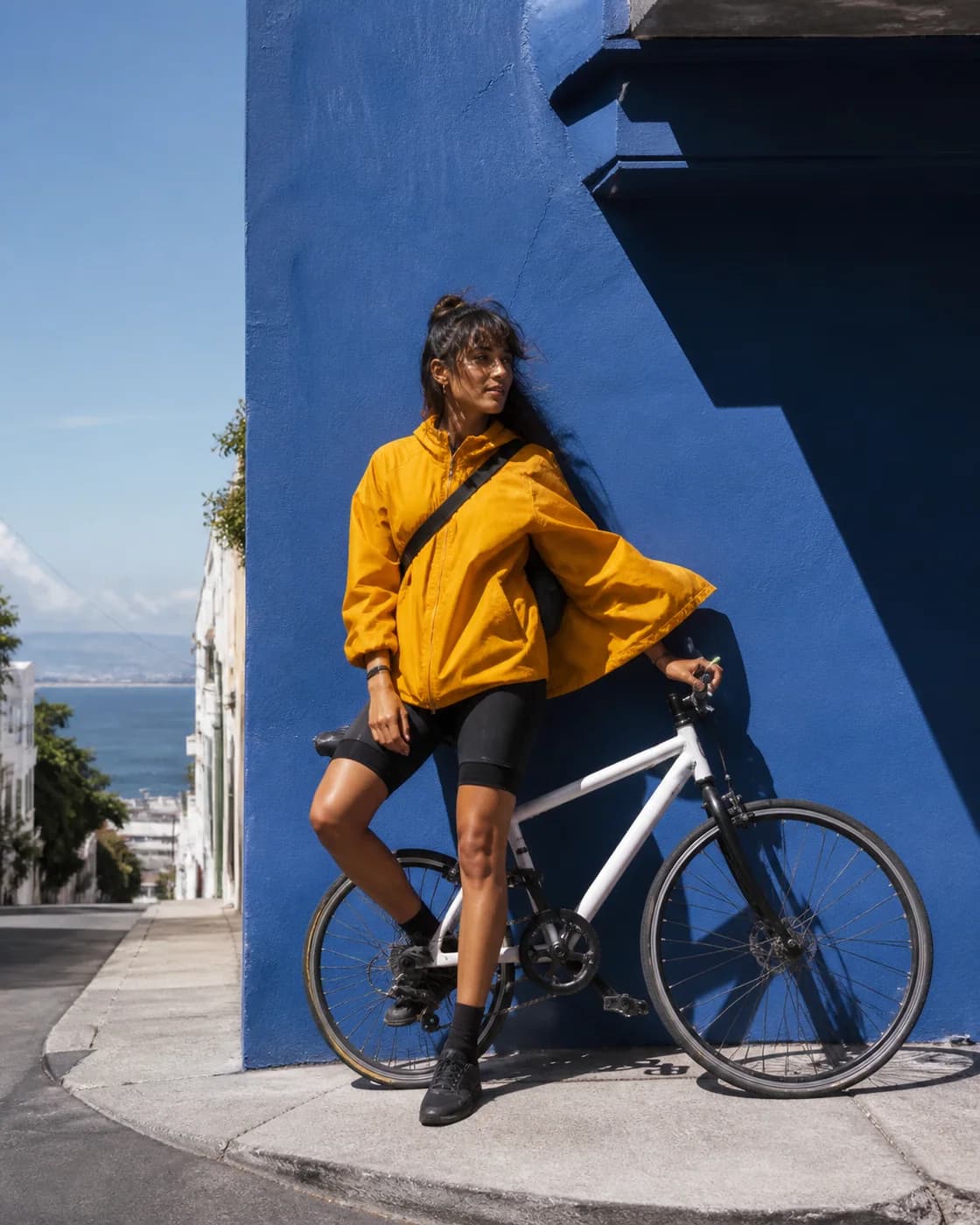
A fictional adult bicycle messenger in a saffron jacket beside a cobalt wall

Visual reference · Editorial photography

Coastal Courier

Read starting prompt

A candid editorial photograph of a fictional adult woman bicycle messenger pausing beside a sunlit cobalt wall, wind moving her bright saffron jacket. Contemporary coastal city side street in clear midday light, photorealistic 35mm editorial photography with realistic skin and fabric texture. No resemblance to a real person, text, logos or watermark.

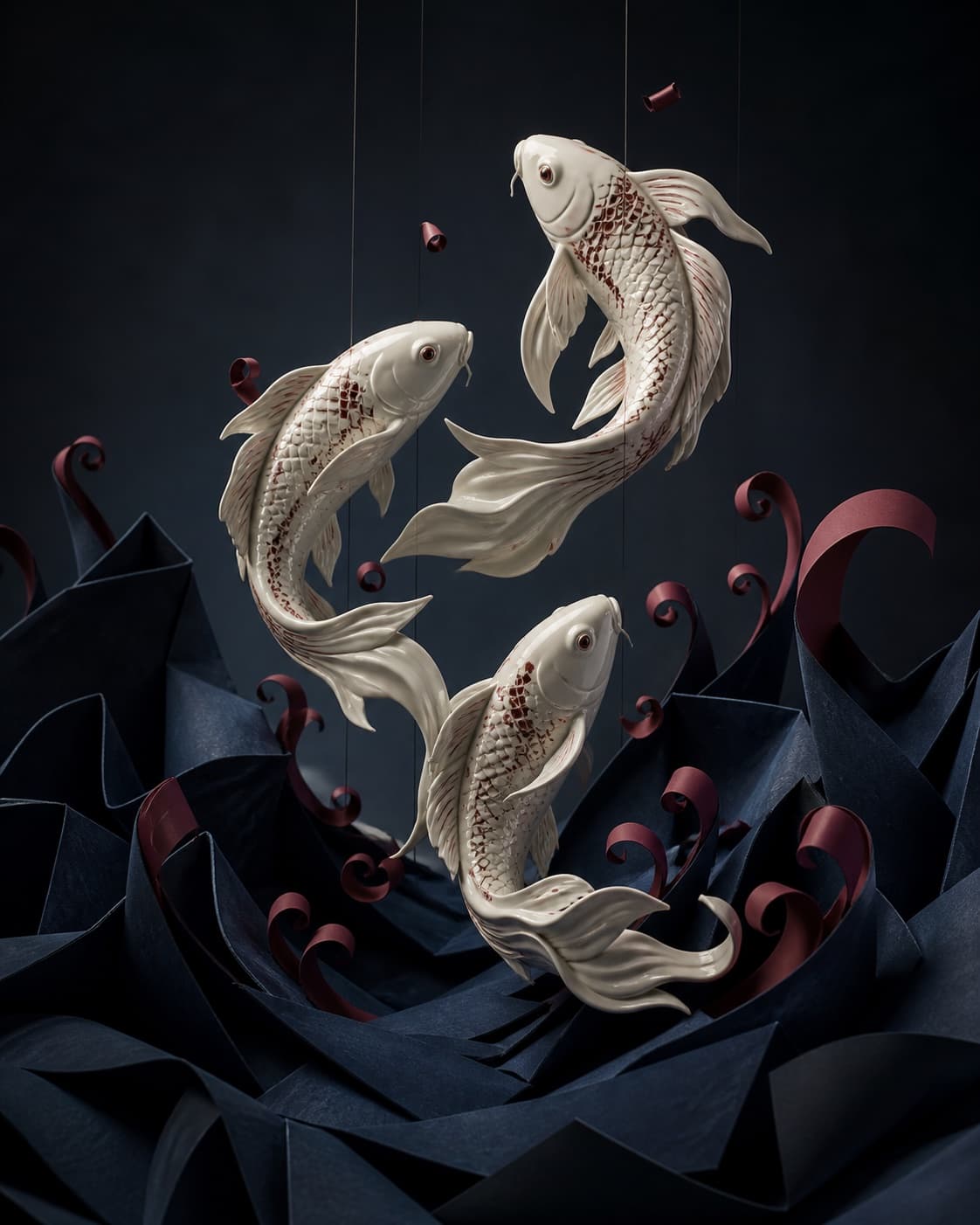
Three ivory porcelain koi rising through midnight paper waves

Visual reference · Crafted worlds

Porcelain Current

Read starting prompt

Three sculptural porcelain koi fish suspended above an ocean made from folded midnight-blue paper, with small burgundy paper waves curling around them. Handcrafted paper-and-ceramic installation photographed as premium editorial art, vertical 4:5 with layered depth and an upward spiral. No humans, brands, logos, text or watermark.

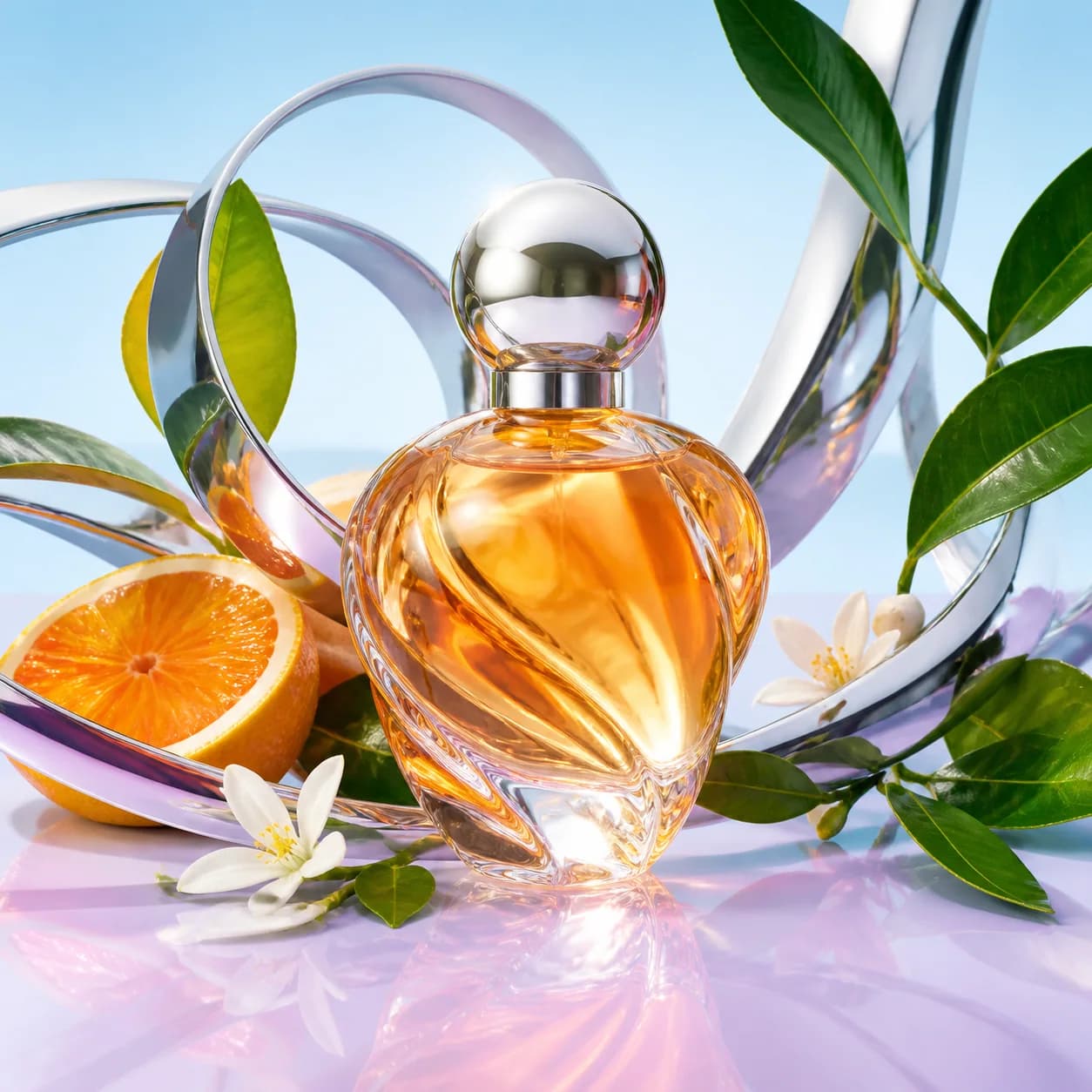
An unlabeled citrus glass perfume bottle framed by chrome ribbons and green leaves

Visual reference · Product direction

Citrus Orbit

Read starting prompt

A sculptural translucent citrus perfume bottle surrounded by chrome ribbons and fresh green leaves. High-end contemporary product photography with physically realistic glass and metal, using citrus orange, cyan, chrome, fresh green and pale lilac. No label, text, logo, trademark or watermark.

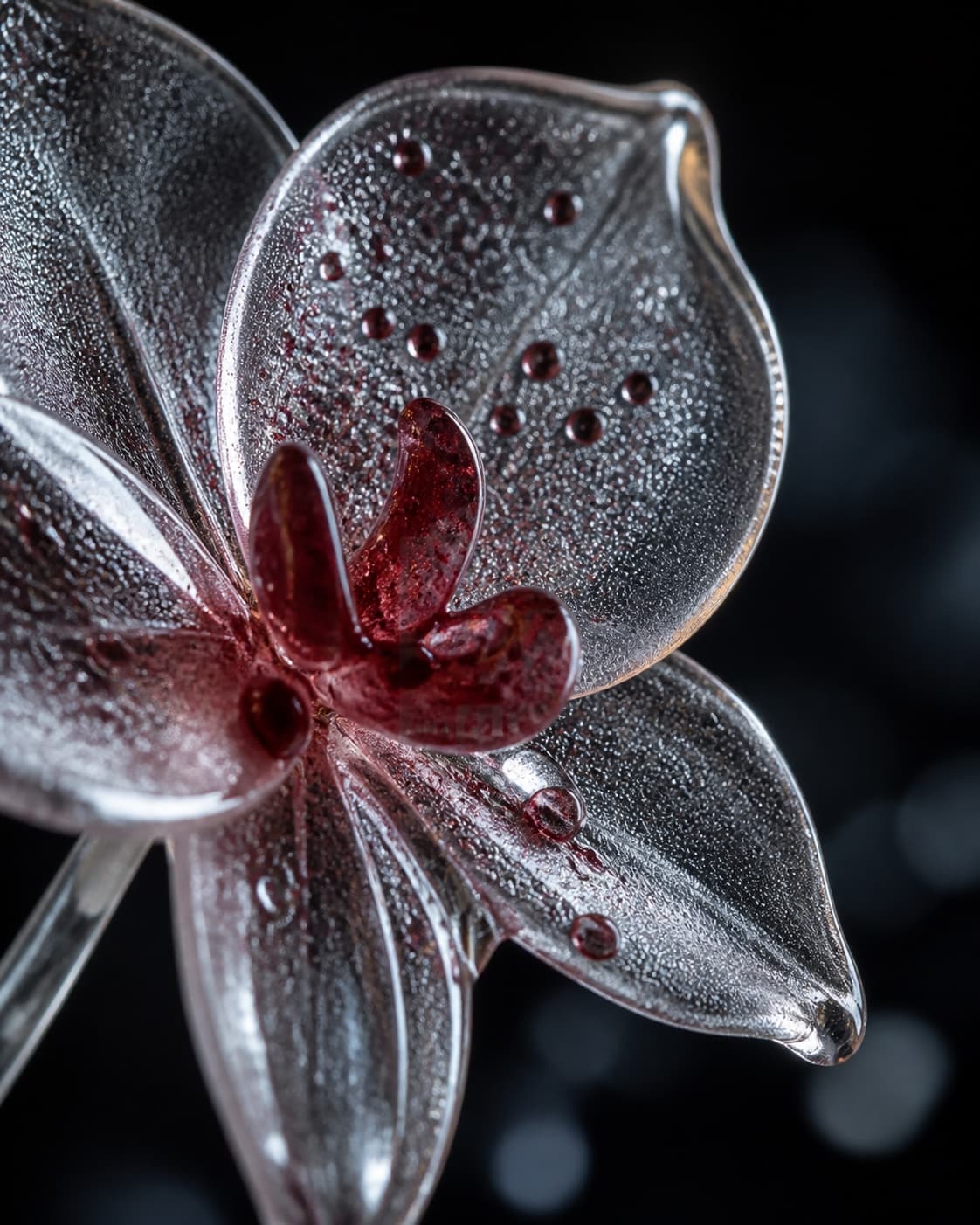
A macro view of a frosted glass orchid with cranberry bubbles

Visual reference · Macro materials

Frosted Glass Orchid

Read starting prompt

Extreme macro photograph of a translucent glass orchid with cranberry-colored bubbles, fine frost, condensation and physically plausible glass. Vertical 4:5 crop in a dark studio with cool rim light and a restrained warm-ivory highlight. No people, text, logo or watermark.

What is a text-to-image generator?

A text-to-image generator creates a new still image from a written description. You supply the subject and visual direction; an AI image model interprets that prompt into an image using the settings you choose.

This AI image generator needs no source image. Describe what should be in the frame instead of uploading a photograph. If you already have an image whose composition or subject you want to transform, use Image-to-Image instead.

How to turn text into an image

Begin with a clear idea, check your setup, and review the result before sharing it.

  1. Describe your image

    Write a text prompt naming the subject, setting, composition, lighting, and materials. Start with one clear scene; no source-image upload is required.

  2. Choose your settings

    Select an available image model, then choose compatible quality, resolution, and aspect-ratio options. Check the exact Credits shown before submitting.

  3. Generate and review

    Sign in to generate, then review the image in your private output panel. Check details, rights, and intended use before downloading or publishing it.

Write a prompt with a clear focal point

A useful text-to-image prompt gives the model decisions it can act on. Start with these five details, then refine what matters most.

Subject
Name the person, object, or place the viewer should notice first. Keep fictional characters distinct from identifiable real people.
Setting
Choose a location and a few meaningful background details. Avoid asking one frame to show several unrelated scenes.
Composition
Describe a close-up, wide view, overhead angle, or space for a later layout. Choose an aspect ratio that suits the intended frame.
Light and color
Specify soft daylight, a hard rim light, or a restrained palette. Conflicting lighting instructions can make the direction harder to follow.
Materials
Use tangible details such as folded paper, frosted glass, or woven fabric. Review texture and anatomy instead of assuming every detail is correct.

After a first result, change one element at a time. This makes it easier to compare alternatives without losing the original idea. A longer prompt is not automatically a better prompt.

Choose settings for the image you need

The form reads current image models and compatible options from the live Generation Catalog. Choose a model first, then review the available quality, resolution, and aspect ratio. Advanced controls appear only when the selected setup supports them.

A portrait layout, square concept, and wide scene have different framing needs. Match the shape to the intended use before refining small details. Changing a model or setting can change the available options and Credit cost; the current form is the source of truth.

If the Catalog cannot be loaded, wait for settings to become available before submitting. No model list on this page overrides the choices or cost shown in the generator.

Where a still-image concept helps

Swipe for more uses.

Independent creators

Plan a fictional character, cover concept, or editorial frame before committing to a larger project. Compare composition and mood while the idea is still easy to change.

Design and marketing teams

Explore a fictional product scene or campaign direction. Use concepts to discuss materials, palette, and layout, not as evidence that a real product exists or performs as shown.

Writers and worldbuilders

Translate a place, object, or moment from prose into a visual study. A concrete frame can reveal which details need clarification before the next draft.

Creative freedom, with a review step

Use the uncensored text-to-image workspace to explore original ideas within the content guidelines. Creative latitude does not remove requirements around law, consent, rights, or provider restrictions.

Your prompts and results are private by default unless you explicitly publish eligible material. Read the Privacy Policy for data handling. Before using an image publicly, inspect the result for unintended details and review the terms that apply to your use.

Text-to-image questions, answered

What is text-to-image generation?

Text-to-image generation turns a written description into a new still image. Unlike image-to-image, it starts from words rather than an uploaded source image. Your prompt supplies the subject and visual direction; the selected model interprets them.

Is this text-to-image generator free?

The workspace is free to open, write prompts in, and compare available settings. Creating an image requires sign-in and the Credits shown before submission. Check your account for any current allowance; free access to the workspace does not mean unlimited free generation.

Does uncensored mean there are no content restrictions?

No. Uncensored describes room for original creative direction, not an exemption from rules. Applicable law, rights, consent, site content guidelines, and the selected provider's restrictions still apply.

Which image models, sizes, and formats are available?

The live Generation Catalog supplies the model and compatible settings shown in the form. Resolution, aspect ratio, output format, and advanced options depend on the selected configuration. Availability can change, so use the current controls rather than assuming every model supports the same options.

How can I improve an AI image prompt?

Name a specific subject, place it in a setting, then describe framing, light, and materials. Start with a short, coherent scene. If a result misses your intention, adjust one detail at a time instead of adding conflicting style instructions. Exact reproduction of a reference image is not guaranteed.

Are my prompts and generated images private?

Prompts and generated results are private by default unless you explicitly choose to publish eligible material. Review the Privacy Policy for how account, prompt, and media data are handled; private does not mean no data is processed.

Can I use generated images commercially?

Do not assume a generated image is automatically cleared for commercial use. Review your inputs, the output, applicable rights, provider terms, and site terms for the intended use. Check for recognizable people, protected characters, brands, and other details that may require permission.

Can I edit or animate an image after generating it?

Use Image-to-Image when you have an authorized source image to transform, or Image-to-Video to explore motion from a still. These are separate workflows with their own compatible settings and Credit costs; starting from a text prompt does not include a video result.

Choose what to do with your image

Put your next image into words

Start with a scene, choose your settings, and check the Credits before you generate.