
Field guide
How to Prepare Images for Image-to-Video
Check image-to-video input quality, file requirements, cropping, visible defects, and motion cues before you generate. Includes a practical source checklist.
Before animating an image, check its file requirements, crop, and visible details. Then ask whether the pose and framing suit the movement you want.
This checklist ends at a ready-to-use source image. For upload, generation, and download steps, follow how to animate an image with AI.
Check the file against the selected option
The Image-to-Video form accepts JPG, PNG, and WebP. Read its displayed file-size limit before exporting; the limit follows the selected generation option. Keep an original master and make a separate upload copy so that a size reduction or crop is reversible.
Inspect the source itself before increasing video resolution. Google recommends a clear, well-composed source for Veo image-to-video, while Runway warns that existing visual artifacts can become more pronounced in motion. Google guidance, Runway guide
Inspect the details that matter
Open the source at 100% size, then look at it at your intended viewing size. Use this inspection sheet to decide what needs repair or a different source.
Scroll sideways to compare all columns →
| Look at | Question before upload | Useful next action |
|---|---|---|
| Face or main object | Can I distinguish the features this shot depends on? | Choose a closer or clearer original if those features are already ambiguous. |
| Hands and overlapping edges | Does the still already contain merged fingers or confusing boundaries? | Correct the still before asking a video model to continue it. |
| Clothing and patterns | Which visible marks must remain recognizable? | Record those details for later comparison; avoid relying on tiny patterns as the only identity cue. |
| Lettering or a product label | Must the words be exact throughout the shot? | Plan to add exact lettering in an editor if you cannot accept it changing. |
| Background lines | Are door frames, shelves, and horizon lines already bent? | Start with straight geometry when that geometry matters to the composition. |
If a flaw is visible here, fix the still first. Save this version so you can later distinguish source defects from changes introduced during animation.
Choose the crop before resizing
Preview the image inside the frame shape you plan to use. Mark the details that must remain visible, then check whether the crop actually contains them. Do not stretch a wide image into a portrait shape to force a match.
The 1448 × 1086 Paper Garden source gives us a concrete crop to inspect:
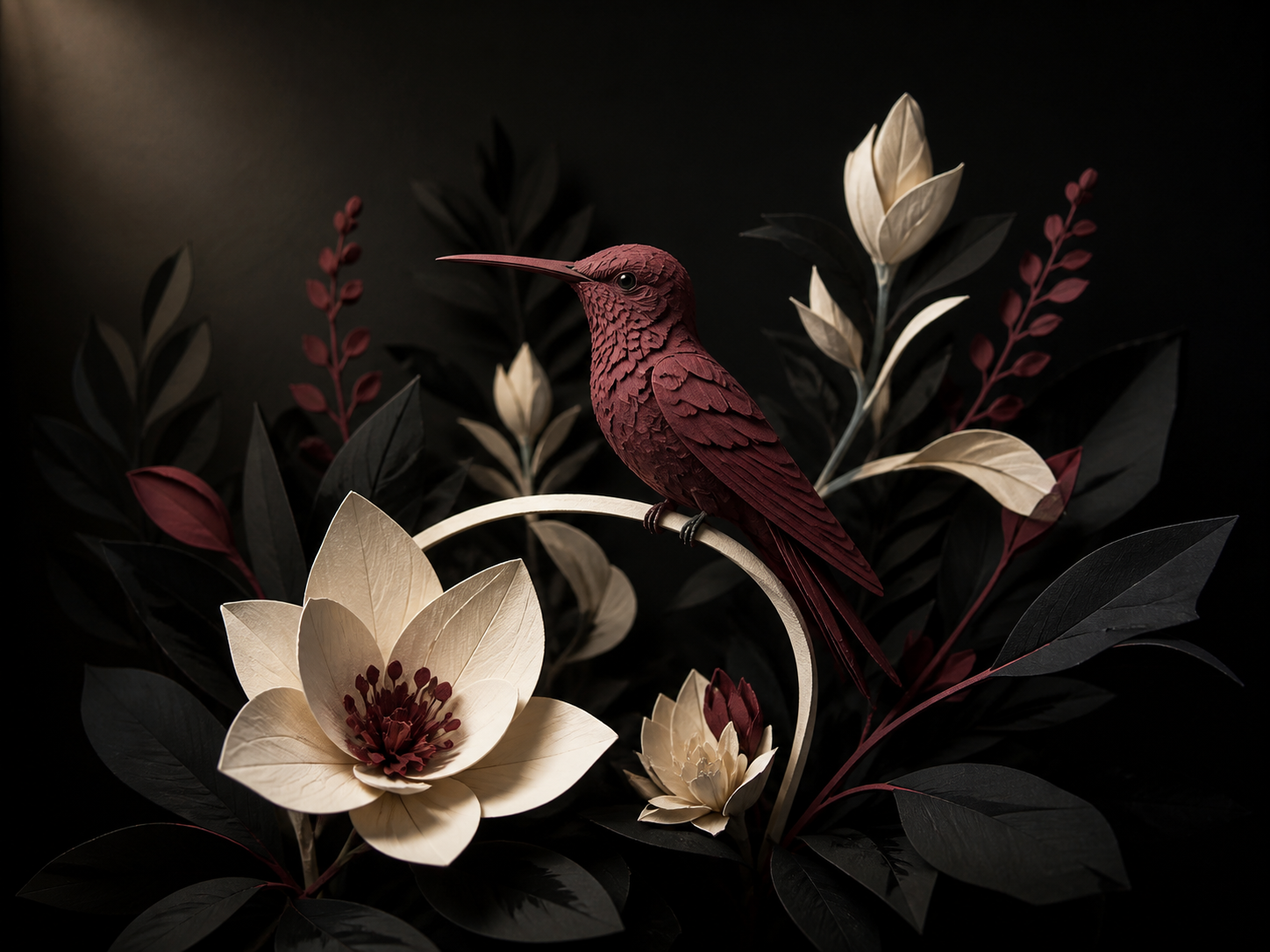
The source gives you specific things to check: the long beak, layered feather edges, visible feet on the perch, and the curve of the stem. The bird is fully inside the original frame. There is space above it, but the flowers and tail also need room if they matter to the shot.
A 9:16 crop using this image's full 1086-pixel height is only about 611 pixels wide, compared with the original 1448. Preview that crop before committing: retaining the center does not automatically retain the entire garden.
Move the crop, choose a different source, or compose a separate portrait still. Keep the unmodified master alongside the version you upload.
Source example details
This original still was created with OpenAI ImageGen and animated through Seedance 2.5 on August 27, 2026. The animation used the same first and last image. The crop calculation is 1086 × 9 ÷ 16 = 610.875 pixels; no cropped-versus-original animation experiment is presented here. Source and generation record · Editorial method
Create or edit the frame you need
If you have no suitable source, open Text to Image and describe the still first: subject, pose, frame shape, setting, and light. For an original fashion character, decide on the outfit and camera angle before adding motion.
If an existing image is close, use Image to Image to request one visual change. An example edit brief is: “Place the subject against a plain gray studio background, keeping the outfit and camera angle close to the source.” Compare the face, edges, and clothing after the edit; generation can change details beyond the requested background.
For exact cropping or lettering, use a conventional image editor. Once the still is ready, choose Animate this image on a completed generated-image result, or add your saved file in Image to Video. Replace the still-image description with directions for movement and review the new generation's Credits.
Read the motion already implied by the image
A still can suggest movement before you write a prompt. A leaning body, blurred wheels, flying dust, or fabric stretched in one direction all tell a visual story. Runway documents an example in which removing motion cues from a vehicle image changed its response to a stationary-car prompt. Runway's input-image examples
Ask whether the source depicts the beginning of your action. If you want a person to turn left, can the visible pose plausibly begin that turn? If you want a stationary object, does the image already show it racing through the frame? Change the still or the requested action when they contradict each other.
Save a source you can compare later
Give the upload copy a descriptive name such as cup-window-landscape-v1.png. Record the intended frame shape and the change you made: “crop moved left to retain the handle” is more useful than “better version.” Keep that record outside the prompt.
Before opening the generator, confirm:
- The source is yours to use, with any required consent for recognizable people.
- The exported format and size match the current upload requirements.
- The intended crop retains the features the shot needs.
- The still does not already contain the defect you want animation to avoid.
- The motion you plan is compatible with the visible pose and scene.
Then animate the prepared image. If the result later changes a face or costume, evaluate that as character consistency, before preparing another version.
Use the method