Uncensored AI Video

Free Uncensored AI Image-to-Image Generator

Edit your picture with a prompt. Free to prepare; Credits to generate.

Image-to-image configuration controls

Drop images here

What is image-to-image AI?

Image-to-image AI takes an uploaded picture and a written editing instruction, then generates a new still image. Your source supplies visual context; the prompt explains the change you want. Use it to explore a different material, lighting direction, background, or illustration style.

Unlike text-to-image, this workflow starts with a picture. The reference guides the result but does not lock every pixel in place. Describe the parts that matter and compare the output with your original before deciding whether the edit works.

One source, one editing direction

Image-to-image examples: source and edited result

These illustrative edits were made with OpenAI ImageGen from our site-owned source images. They show how an editing request can change a picture; they are not tests of the models in this generator. Compare the details before trying a direction with your own image.

Swipe for three editing directions.

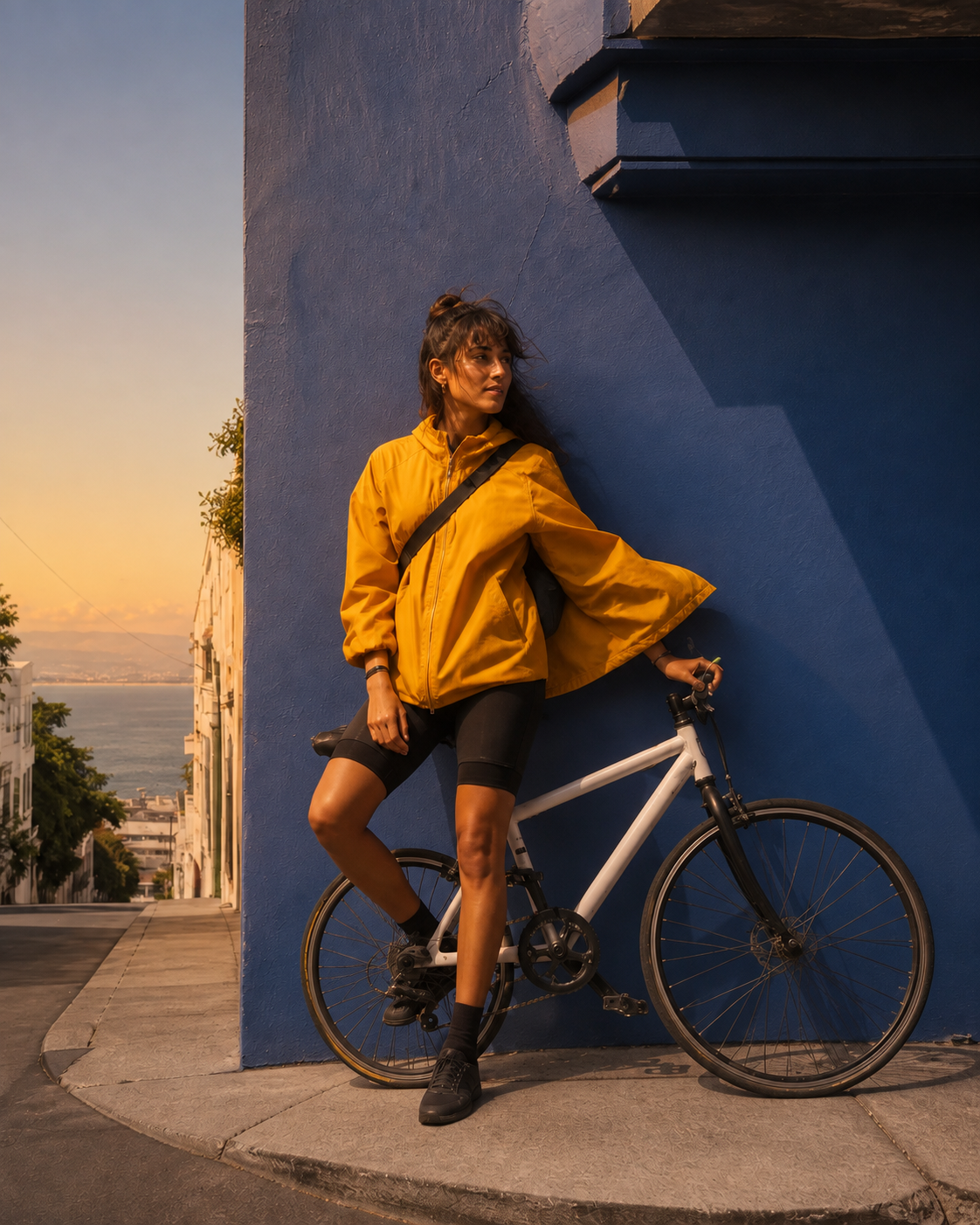
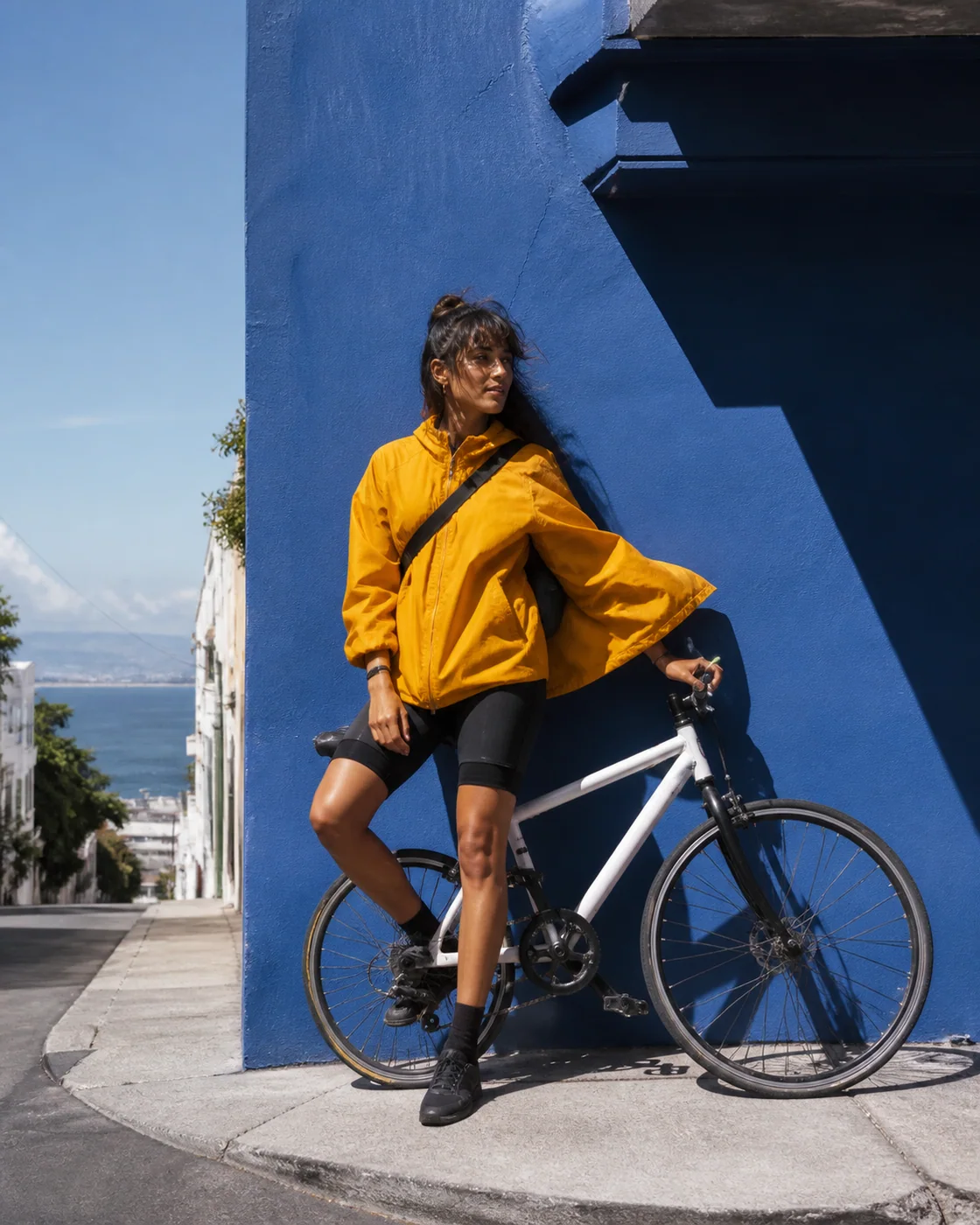
Source reference: A fictional adult bicycle messenger in a saffron jacket beside a cobalt wall
Source image
Edited illustration: the fictional courier and bicycle lit by warm evening light
Illustrative edit · OpenAI ImageGen

Generated editing example · September 4, 2026

Change the light

Relight an editorial portrait while asking to retain the framing and clothing. Compare the face and silhouette carefully after each pass.

What changed: The light is warmer and the street is darker. The jacket, bicycle, and broad framing remain recognizable; the wall color and facial shading also shift.

Read a prompt to try

Relight this image with soft evening light and a warm highlight on the jacket. Keep the camera angle, subject position, clothing, and background layout as close to the source as possible. Do not add people, text, or logos.

Open source reference (new tab)

Upload your own image or the source reference first. This button loads only the prompt; your source and settings stay as they are.

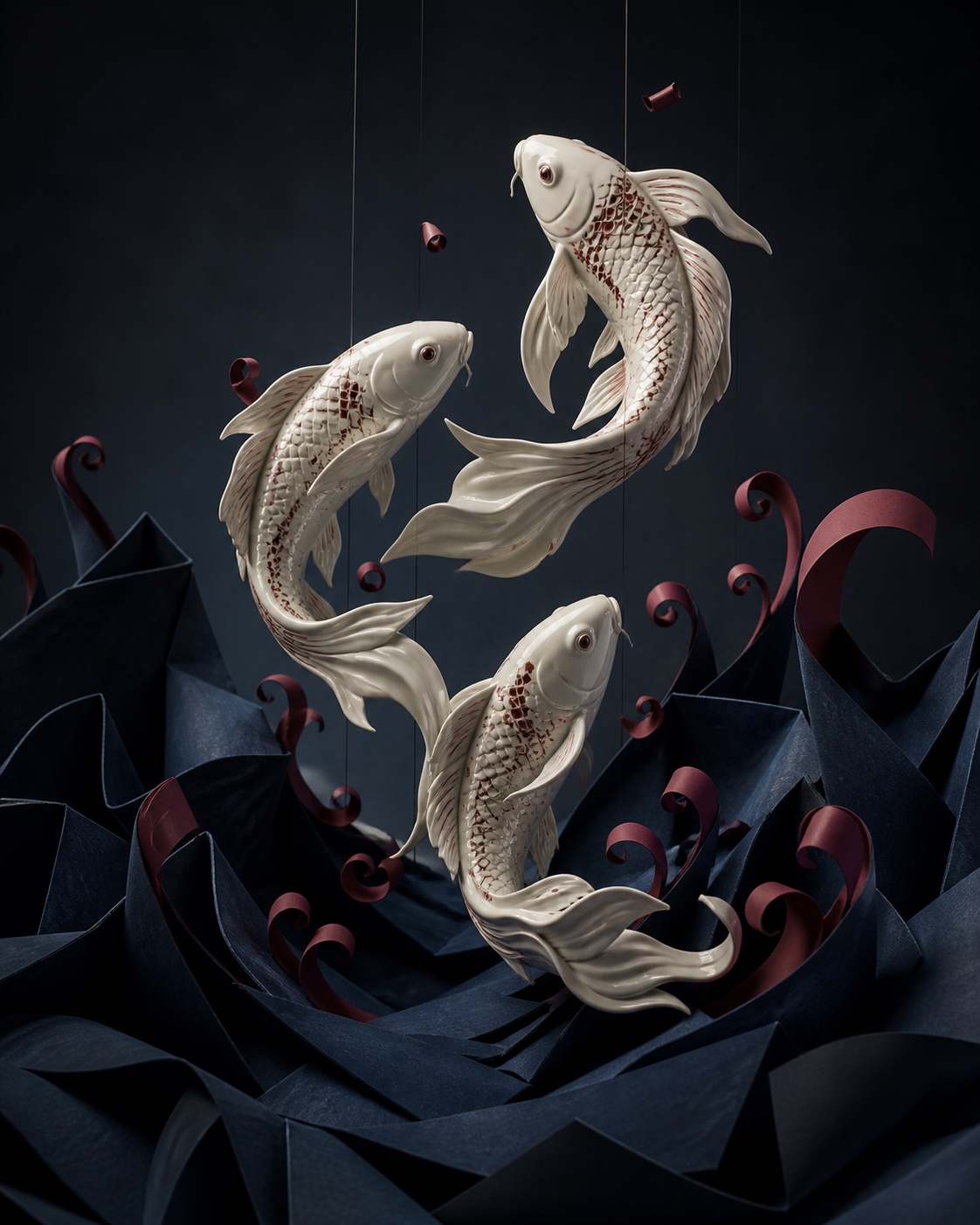
Source reference: Three ivory porcelain koi rising through midnight paper waves
Source image
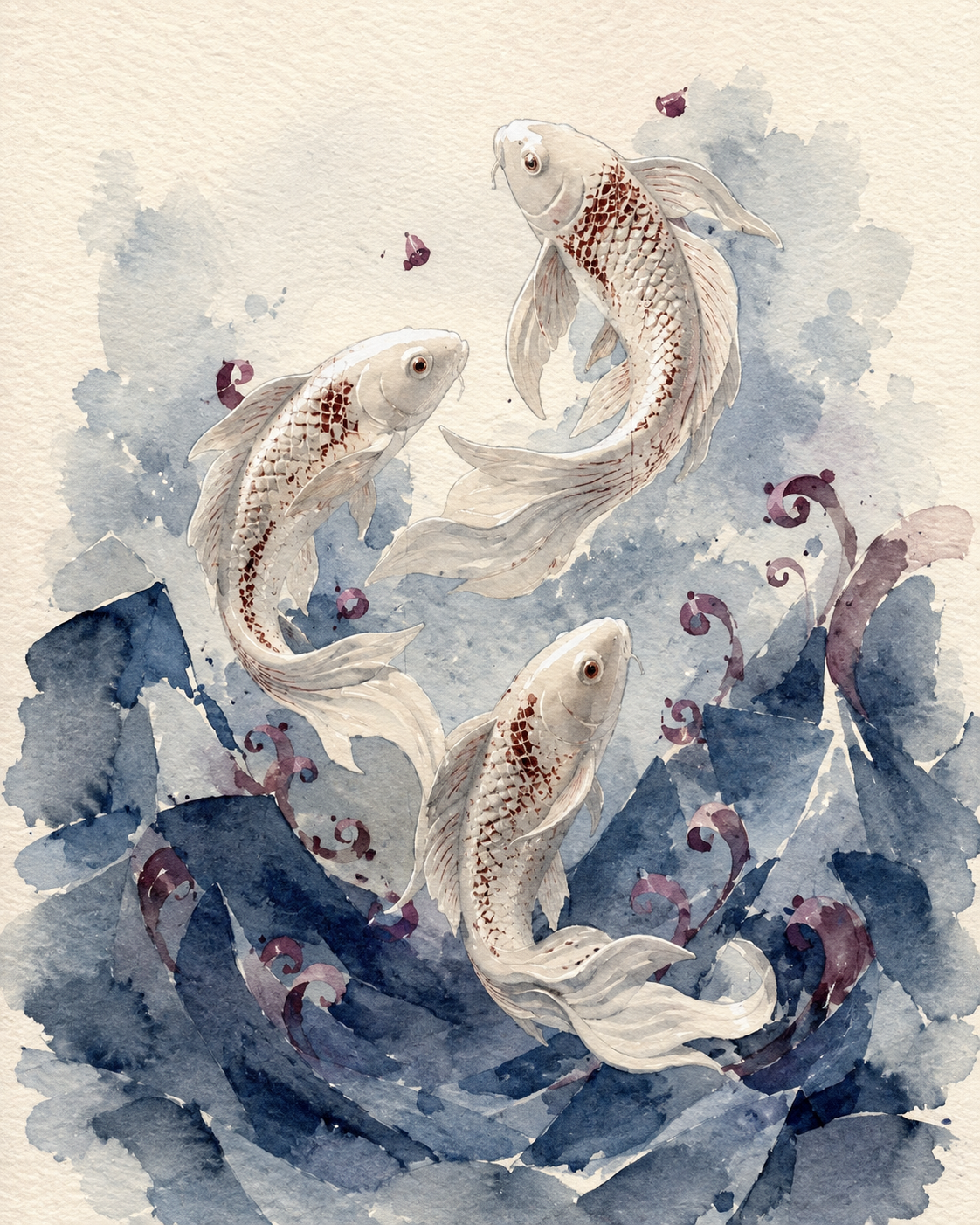
Edited illustration: three koi reinterpreted in blue and burgundy watercolor on ivory paper
Illustrative edit · OpenAI ImageGen

Generated editing example · September 4, 2026

Explore another medium

Use a sculptural scene as the starting point for a watercolor study. Check object count and placement instead of assuming the arrangement survived.

What changed: Three fish remain in a similar upward arrangement. Glossy ceramic and folded paper become painted washes; the fins, scales, and surrounding waves are redrawn.

Read a prompt to try

Reinterpret the source as a watercolor illustration on textured ivory paper. Retain the three koi, their relative positions, and the upward composition. Use loose blue washes and small burgundy accents. Do not add text or extra objects.

Open source reference (new tab)

Upload your own image or the source reference first. This button loads only the prompt; your source and settings stay as they are.

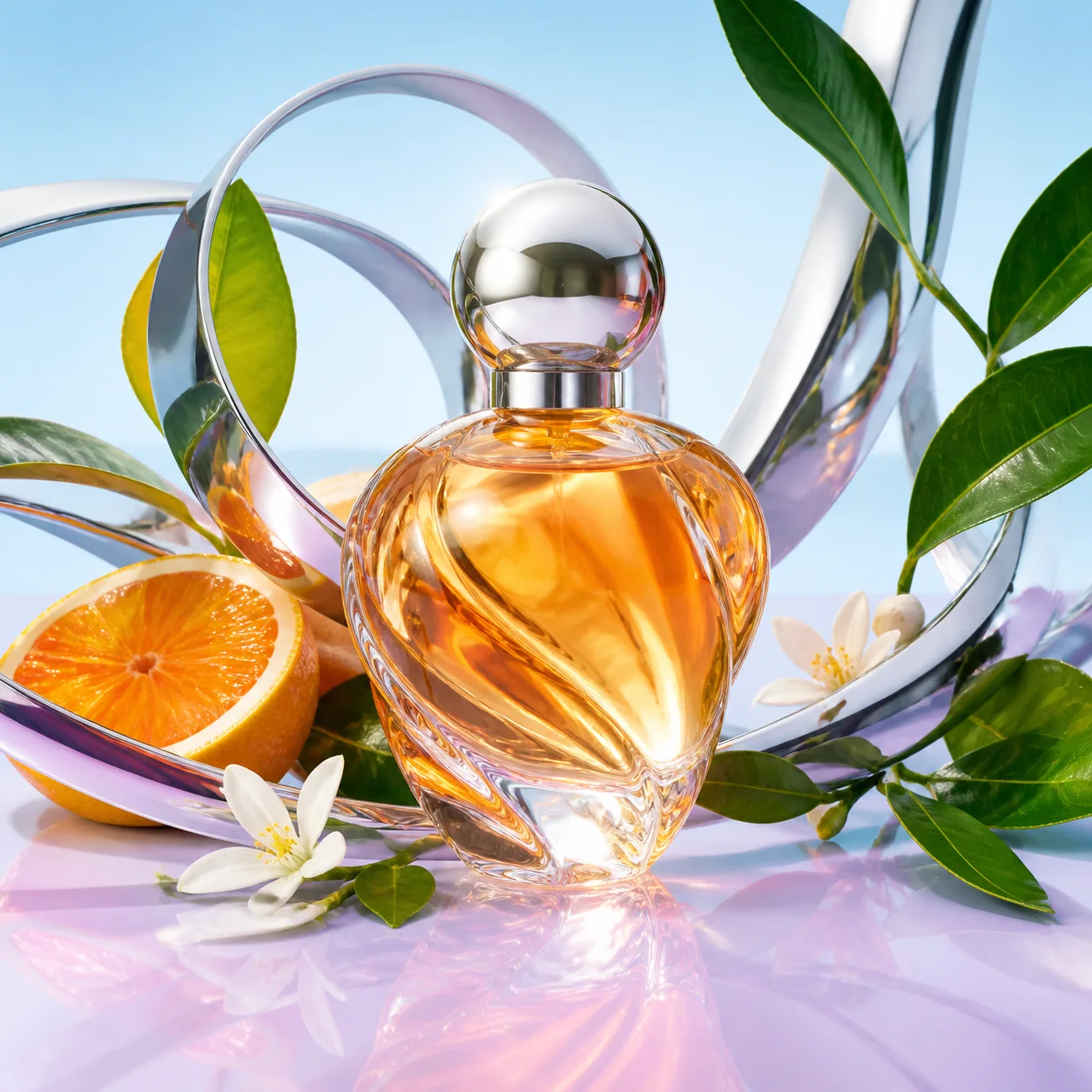
Source reference: An unlabeled citrus glass perfume bottle framed by chrome ribbons and green leaves
Source image
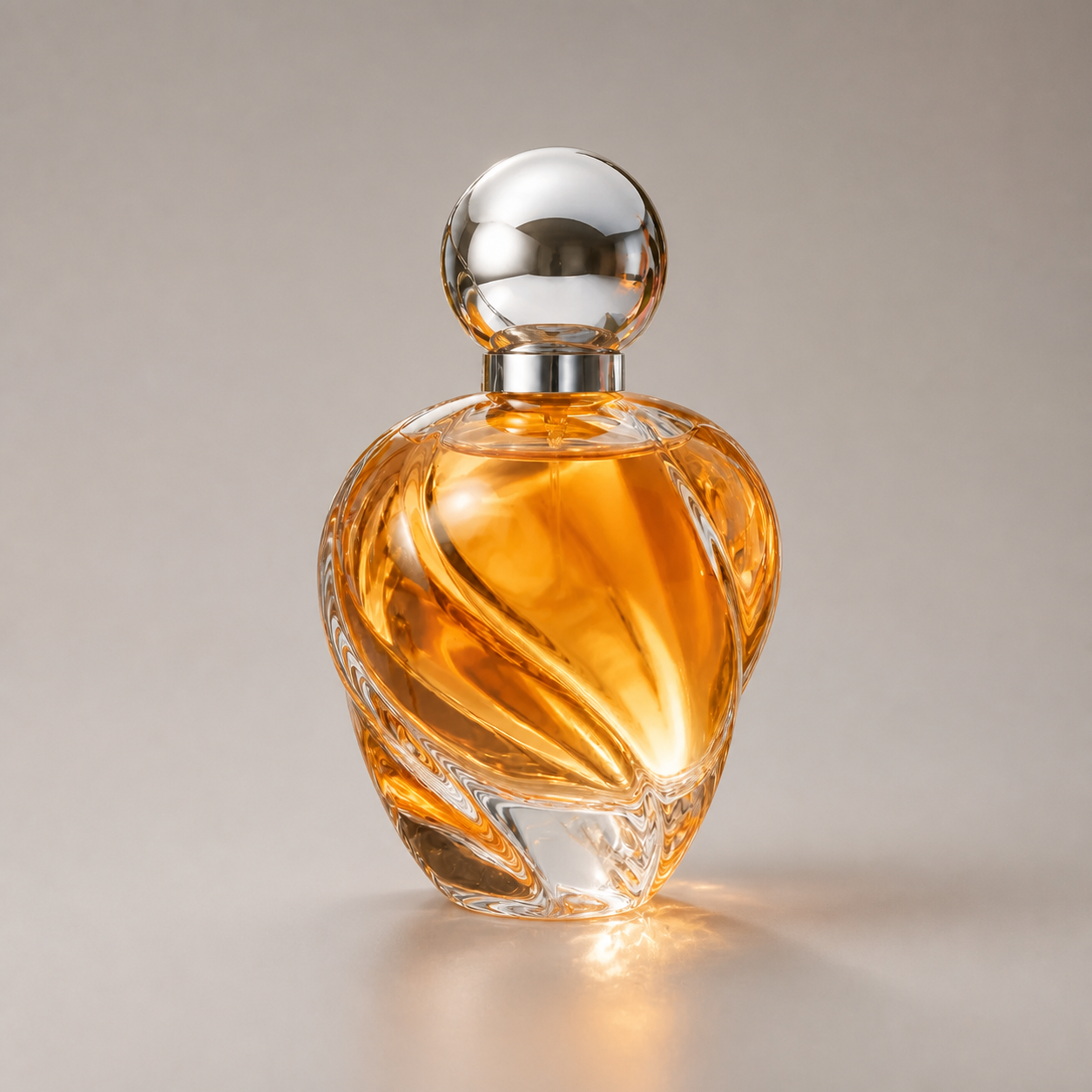
Edited illustration: an unbranded orange glass bottle on a warm-gray studio background
Illustrative edit · OpenAI ImageGen

Generated editing example · September 4, 2026

Simplify the setting

Try a quieter setting for a fictional product concept. Review the object outline, reflections, and materials before using the image in a layout.

What changed: The fruit, leaves, and ribbons are removed. The orange bottle and round cap remain recognizable, while glass highlights, cap reflections, and the ground shadow change.

Read a prompt to try

Place the main glass bottle against a quiet warm-gray studio background. Keep its outline, orange glass, and camera angle close to the original. Remove surrounding ribbons, leaves, fruit, and blossoms, with a soft contact shadow beneath the bottle. Keep the bottle unbranded.

Open source reference (new tab)

Upload your own image or the source reference first. This button loads only the prompt; your source and settings stay as they are.

How to edit an image with AI

Begin with an image you can use, make one clear request, and inspect the result.

  1. Upload your source image

    Choose an image you have permission to edit. Use the formats, file size, and image count shown in the upload area for your selected model. Start with one clear source before adding more references.

  2. Describe the change

    Tell the model what to change and what to keep: for example, change the lighting while retaining the camera angle. Choose compatible settings and check the Credits before submitting.

  3. Generate and compare

    Sign in to generate, then compare the private output with your original. Inspect composition, faces, text, and fine details. Refine one instruction at a time and download the version you want to keep.

Tell the model what to keep and what to change

A useful image-to-image prompt separates the edit from the details you want to retain. You do not need to describe the whole picture again.

The change
Choose a concrete request: soften the lighting, replace a busy background, or reinterpret the scene as an illustration. Start with one change so the result is easy to judge.
The anchors
Name the camera angle, subject position, clothing, palette, or object arrangement that matters. These instructions express a goal; they do not guarantee perfect preservation.
The source
Use a clear, well-framed reference. Blur, heavy compression, and tiny subjects leave less detail to work with. If several images conflict, return to one source before adding references again.

For example: “Change the background to a quiet studio wall. Keep the jacket, pose, and camera angle close to the original.” Compare the subject outline and face afterward, even when only the background was meant to change.

Choose a model for your image edit

The form shows currently available image models and compatible settings from the Generation Catalog. Select a model before settling on resolution and aspect ratio. A change of model can also change the number of references it accepts and the cost of the edit.

Match the output shape to the composition you need. A wide source and a tall output may require a different crop or a reconstructed scene. Output format and additional controls appear only when the selected setup supports them; do not assume every model exposes a strength slider, masking, or the same options.

If settings are unavailable, wait for them to load before continuing. Your selected configuration determines the request; a prompt cannot enable a feature the model does not support.

Compare the result with the original

Image-to-image generation is a new interpretation, not an exact retouch. Keep the original available while you inspect the output at a useful size.

Composition
Compare framing, perspective, object count, and the subject's position. Check that the change serves the image rather than introducing distractions.
Fine details
Inspect faces, hands, lettering, repeated patterns, edges, and reflections. A convincing thumbnail can conceal errors that become obvious when enlarged.
Next revision
If an edit drifts, simplify the request and change one instruction at a time. Start again from the original when successive reinterpretations move too far away. Use a conventional editor for exact local corrections.

Your source, your permissions, a private result

Use the uncensored image-to-image workspace for original creative exploration within the content guidelines. Upload only material you have the rights and consent to use. Applicable law and provider restrictions still apply.

Source media, prompts, and results are private by default unless you explicitly publish eligible material. Read the Privacy Policy for data handling or visit Data requests. Privacy does not remove the need to review identifiable people, brands, and other protected details before sharing an image.

An AI edit does not automatically clear a picture for commercial use. Check the source permissions, output, provider terms, and site terms for your intended project.

Image-to-image questions, answered

What is image-to-image AI?

Image-to-image AI uses an uploaded picture and an editing prompt to generate a new still image. The source provides visual context; your instructions describe the change. It differs from text-to-image, which starts from words without a source picture.

Is this image-to-image generator free?

You can open the workspace, prepare an edit, and compare settings for free. Generating requires sign-in and the Credits displayed on the button. Check your account for any current allowance; free workspace access does not include unlimited free image generation.

Which files and how many reference images can I use?

Read the upload requirements for your selected model before adding files. The form shows accepted formats, the per-image size limit, and the permitted image count. Changing the model can change that count; remove extra files if the new selection accepts fewer references.

Will image-to-image preserve the subject and composition exactly?

No. A reference guides generation but does not guarantee identical faces, geometry, text, or colors. State which details matter, begin with a clear source, and compare every output against the original. Use a conventional editor when you need exact pixel-level changes.

Why did my edit drift away from the original?

An ambiguous source, conflicting references, or a prompt that changes several things at once can make the intended edit unclear. Try one source and one change, name the details to preserve, and review the selected model and aspect ratio before trying again.

Does uncensored image-to-image mean any content is allowed?

No. Creative freedom still comes with requirements around applicable law, rights, consent, site content guidelines, and the selected provider's restrictions. Only upload material you have permission to use and review each result before sharing it.

Are my uploaded images and results private?

Source images, prompts, and results are private by default unless you explicitly publish eligible material. Private does not mean no data is processed. Read the Privacy Policy for data handling and use Data requests if you need help with your information.

Can I use an edited image commercially?

An edit does not remove rights attached to the original image or guarantee clearance for the result. Review source permissions, recognizable people, protected characters, brands, provider terms, and site terms for your intended use before publishing or selling it.

Prepare the edit for motion

Give your image a new direction

Upload a source, describe one change, and review the selected settings before generating.