
Field guide
AI Video Character Consistency: A Within-Clip Guide
Check character consistency from the source frame through motion. Use a reference record, diagnose identity changes, and understand the limits across clips.
AI video character consistency means keeping the face, hair, clothing, and proportions recognizable as a character moves. Check the whole action: a convincing opening frame can become a different face during a turn.
Use this guide to prepare a reference, review a single clip, and decide whether two shots can work together.
Separate three kinds of consistency
Scroll sideways to compare all columns →
| Kind | Compare | Look for |
|---|---|---|
| Starting appearance | Source image against the opening of the clip | A changed face, hairstyle, or outfit before the action begins. |
| Within one clip | The character before, during, and after the action | Features that change during a turn, obstruction, or movement. |
| Across clips | The character on both sides of an edit | A different face, wardrobe detail, or proportion between shots. |
A creator on Reddit describes faces, hairstyles, and outfits shifting between short clips—the three things worth recording before your next attempt. Read the first-hand report
The VBench research project treats subject consistency as a separate quality dimension. Review identity even when the motion looks appealing. VBench project
Make a character reference record
Before generating, save the source image and write down the few details that would make the shot unusable if they changed. For an original adult character, a record might look like this:
Scroll sideways to compare all columns →
| Attribute | Example reference note |
|---|---|
| Face | Broad jaw, round glasses, visible freckles. |
| Hair | Short curls with a side part. |
| Wardrobe | Dark green jacket over a plain cream shirt. |
| Distinctive detail | One silver pin on the left lapel. |
| Allowed change | Expression and head angle may change; glasses and jacket should remain. |
Adapt these example notes to your image and keep them beside the result. Use the same record to judge each take.
Give one clip one observable action
Choose an action you can evaluate, such as a glance toward the window. A turn, wardrobe change, location change, and new camera angle in the same short clip make it harder to determine where identity changed.
Google's video guidance recommends dividing distinct events into separate short scenes. Its image-to-video advice also distinguishes the image's appearance information from the prompt's movement instructions. Google's video guidance
An illustrative motion prompt is:
The subject glances toward the window, pauses, and faces forward again. The camera stays in the same position throughout.
Pause when the subject faces forward again and compare with the opening. Did the glasses, jaw, and hairstyle survive the turn?
Build the reference before animating
For an original fictional adult character, use Text to Image to settle the appearance first. Choose a pose and frame that show the face and clothing details you want to keep. Save the still and your reference notes together.
If you need to adjust a scene, Image to Image lets you request an edit from a source picture. Compare the edited face and outfit against the original before taking it into video. A changed face in the still needs attention at this stage, before motion is added.
From a completed generated-image result, choose Animate this image. The site carries that image into Image to Video; add a motion prompt, select the video settings, and check its Credits. This is a new generation with its own cost.
A starting image guides appearance. It does not lock identity across a turn or a new scene. Keep checking the details in your reference record, and use only the controls offered by your selected mode. The source checklist covers file and crop preparation; the animation walkthrough covers the full process.
Review the face through the action
Watch the full clip at normal speed. Then pause at the start, the largest turn or obstruction, and the end. A brief change between those checkpoints still matters, so the paused frames supplement playback rather than replace it.
Use the same reference record each time. Record the time and the observable change: “glasses disappear during the turn” or “the jacket pin moves to the opposite side.” “Looks less consistent” gives you little to act on.
If the starting appearance is wrong, reconsider the source and selected mode. If the character changes only during a large turn, try a smaller action while keeping the source and settings recorded. Save both takes and compare the same moment in the action.
A real example: the face disappears behind the effects
In the Crimson Veil fashion scene below, an original fictional adult woman approaches the camera while ribbons and fragments move around her. Around six seconds, those foreground effects overlap her face and torso. The face becomes difficult to read, even though the long black dress remains recognizable.
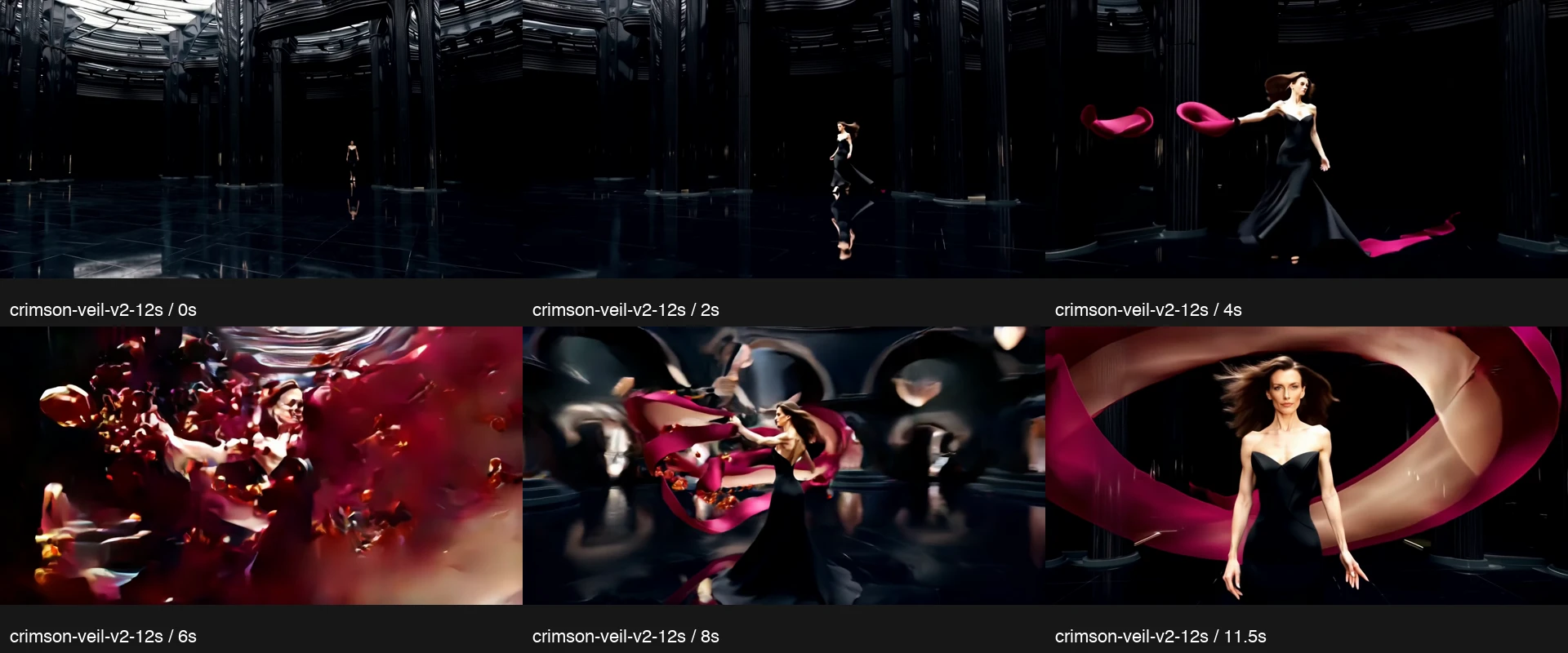
At 0–2 seconds she is too distant for a detailed facial comparison. At 4 seconds the side of her face is visible; by 11.5 seconds there is a clear frontal view again. Those different distances and angles make “same black dress” an inadequate identity check.
Use the interval around the obstruction to guide the next decision:
- Find the last clear face before the effects cross it and the first clear face afterward.
- Compare features at similar angles where possible. Mark an obscured frame as unreadable instead of declaring it a different person.
- If viewers need to see the expression throughout, try a new draft with the ribbons behind the character. Keep that proposed change separate from what this existing clip demonstrates.
Example details and original prompt
Generated August 27, 2026 through WaveSpeed's LTX 2.5 text-to-video API. The prompt specified an adult woman in a fictional scene and used no image input. The retained execution settings list 12 seconds, 1080p, and 16:9; the original file is 1920 × 1024 at 24 fps. The displayed copy is resized and has its audio track removed.
The full prompt and execution record documents this single historical run. It shows an interval of occlusion and unreadable facial detail; it does not isolate identity drift, establish cross-shot consistency, or test the revised ribbon direction. The current site's available models and settings may differ. See how we document examples.
Check the cut before combining clips
When two clips belong in one sequence, compare the last usable frame of the first with the first usable frame of the second. Check face shape, hairstyle, wardrobe details, body proportions, and screen position. Then play the edit: matching still frames can still conceal an abrupt change in motion.
Use the reference record again for every new angle or location. If the join is distracting, choose a different take, shorten the usable section, or revise the shot plan.
When the problem is flashing textures, bending objects, or uneven motion rather than the character's appearance, use the AI video artifact diagnosis guide. Keep those judgments separate: a recognizable character can still appear in a technically flawed clip.
Use the method